
If you want to improve the accessibility of your Squarespace website, the Barriano Accessibility Widget can help provide accessibility tools that allow more users to interact with your website content.
Follow these steps to install the Barriano Accessibility Widget on your Squarespace website.
Step 1: Register Your Squarespace Website with Barriano
The first step is to register your Squarespace website with Barriano and complete the website setup process.
After registration, Barriano will provide a unique installation script for your website. Copy the script to your clipboard or save it as a text file.
Use the following Barriano installation script:
Do not modify the script URL or remove the unique website key.
If your website is already registered with Barriano, you do not need to register again. Sign in to your Barriano dashboard, select your Squarespace website, and copy the existing installation script.
If you have trouble accessing your Barriano account, use the password recovery option to regain access.
Step 2: Paste Your Code in the Footer Section
Sign in to your Squarespace dashboard.
From the left-hand navigation menu, select Settings.
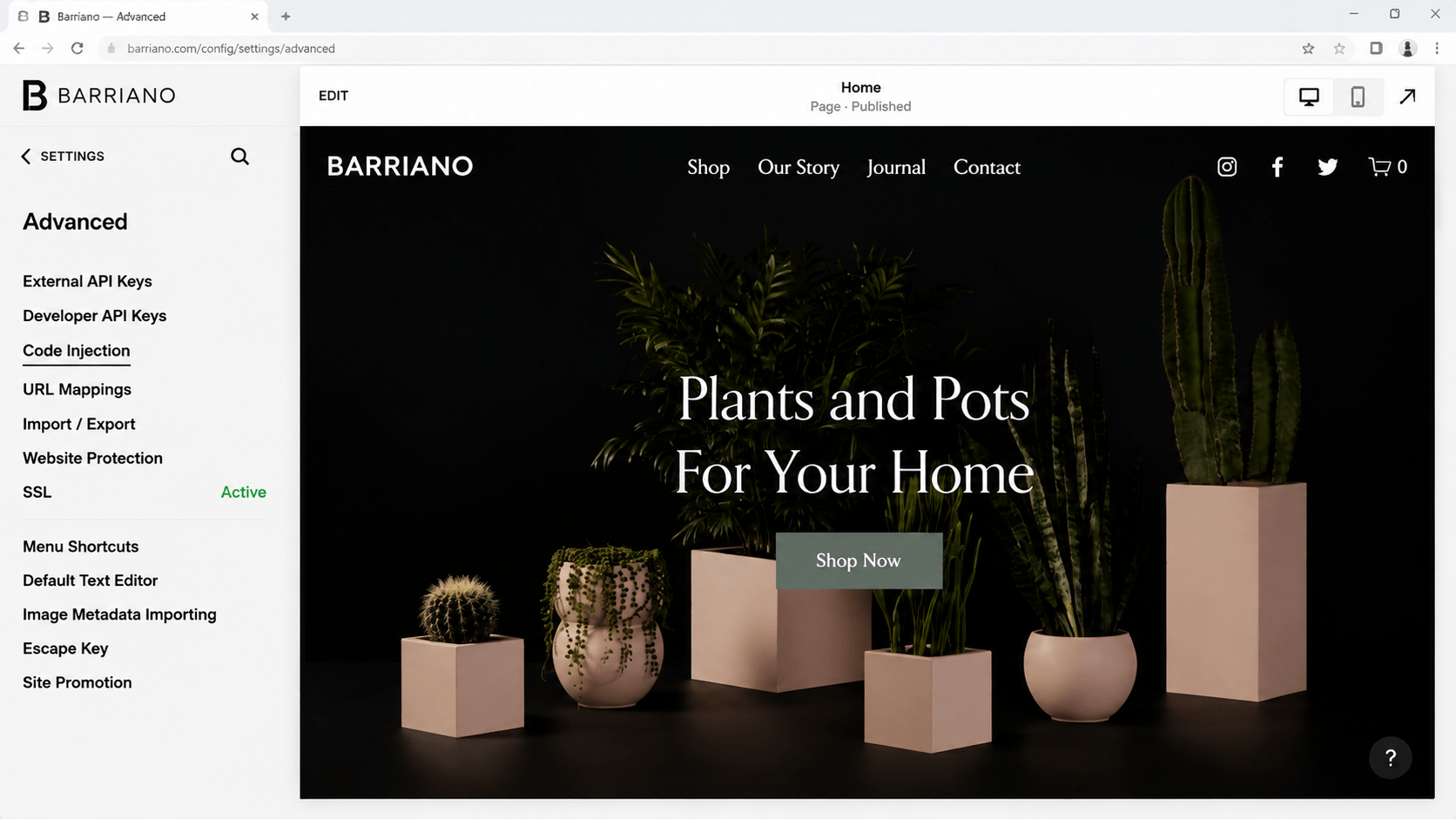
Scroll down and select Advanced.
Then select Code Injection.
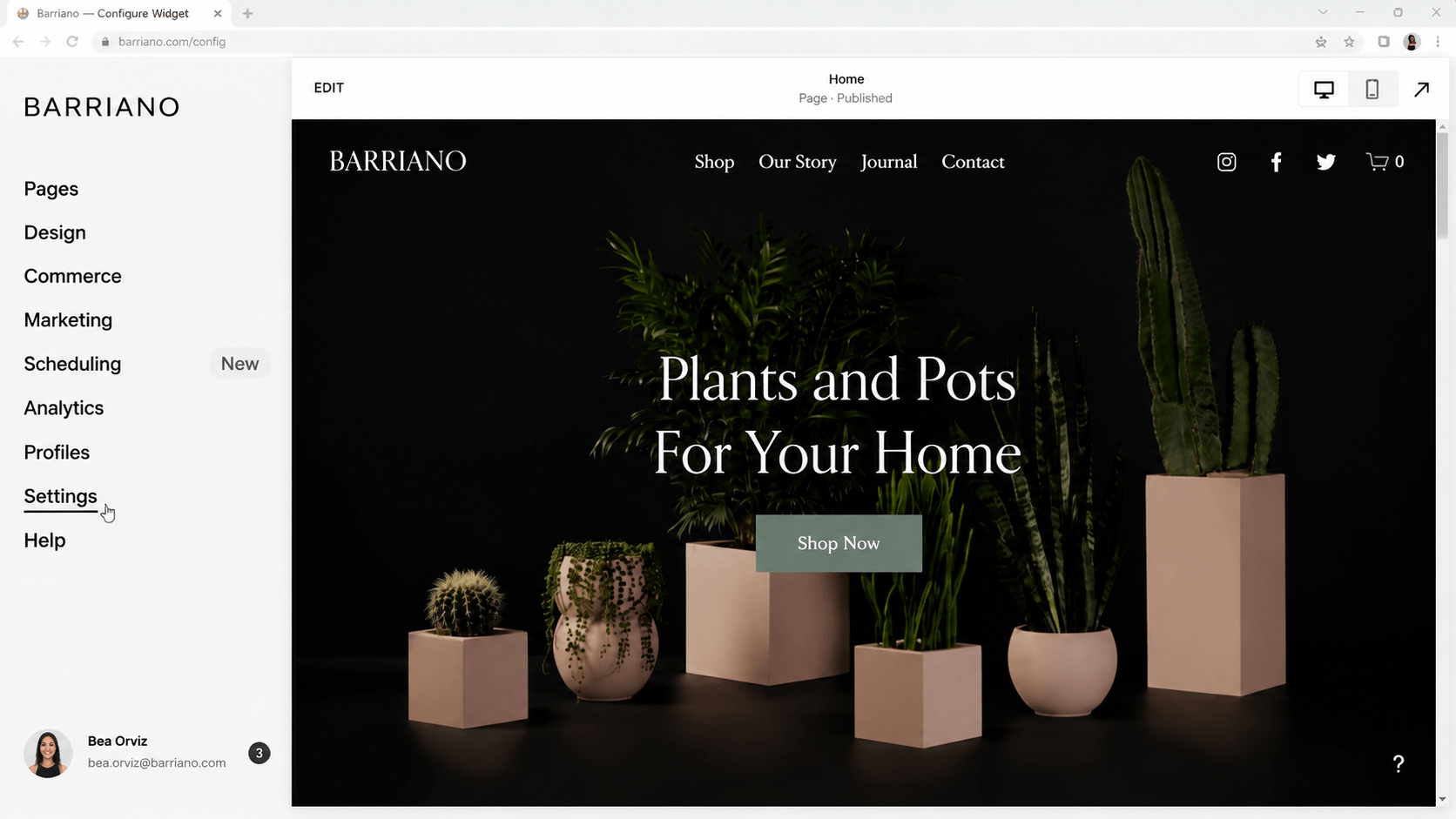
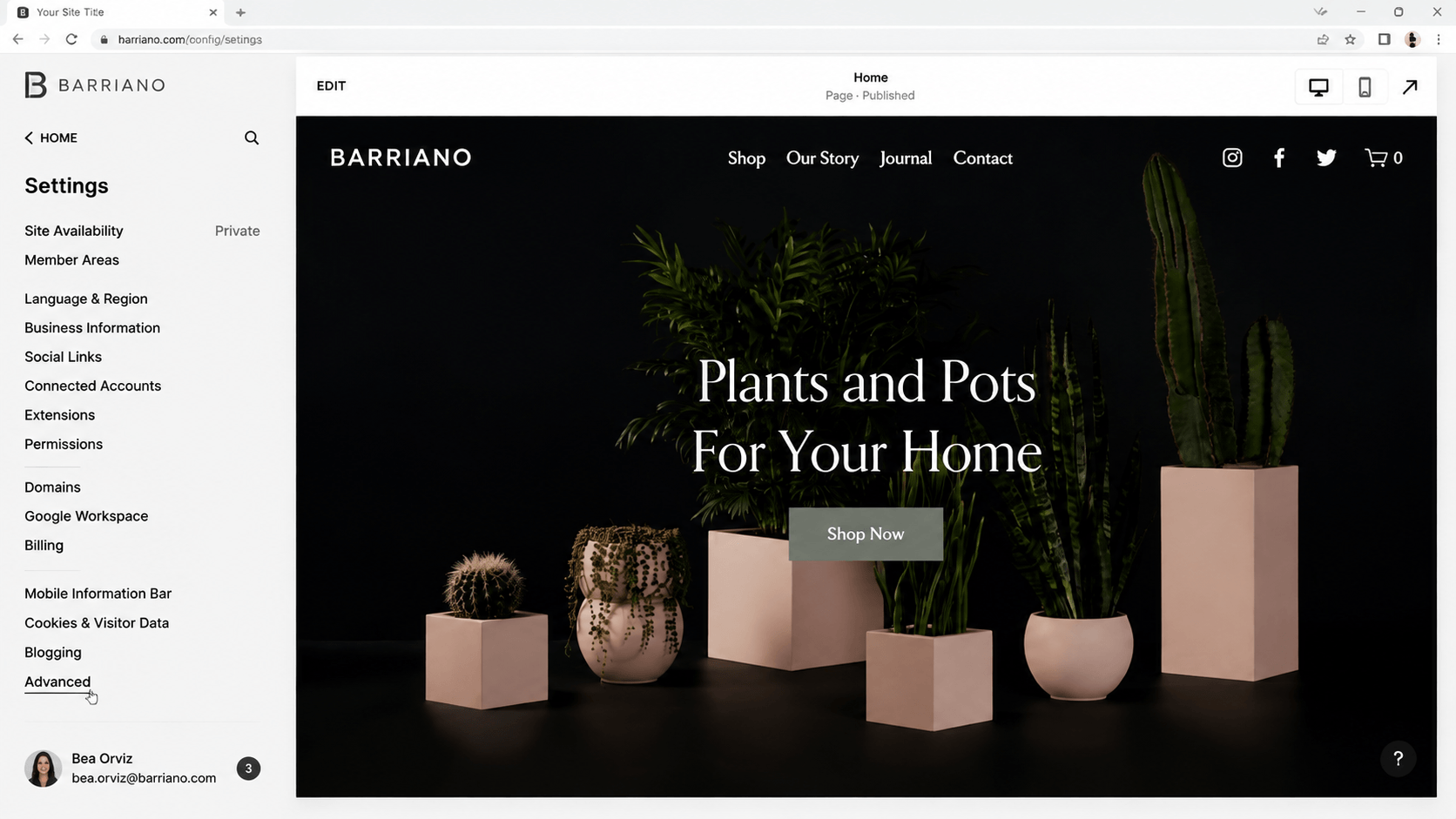
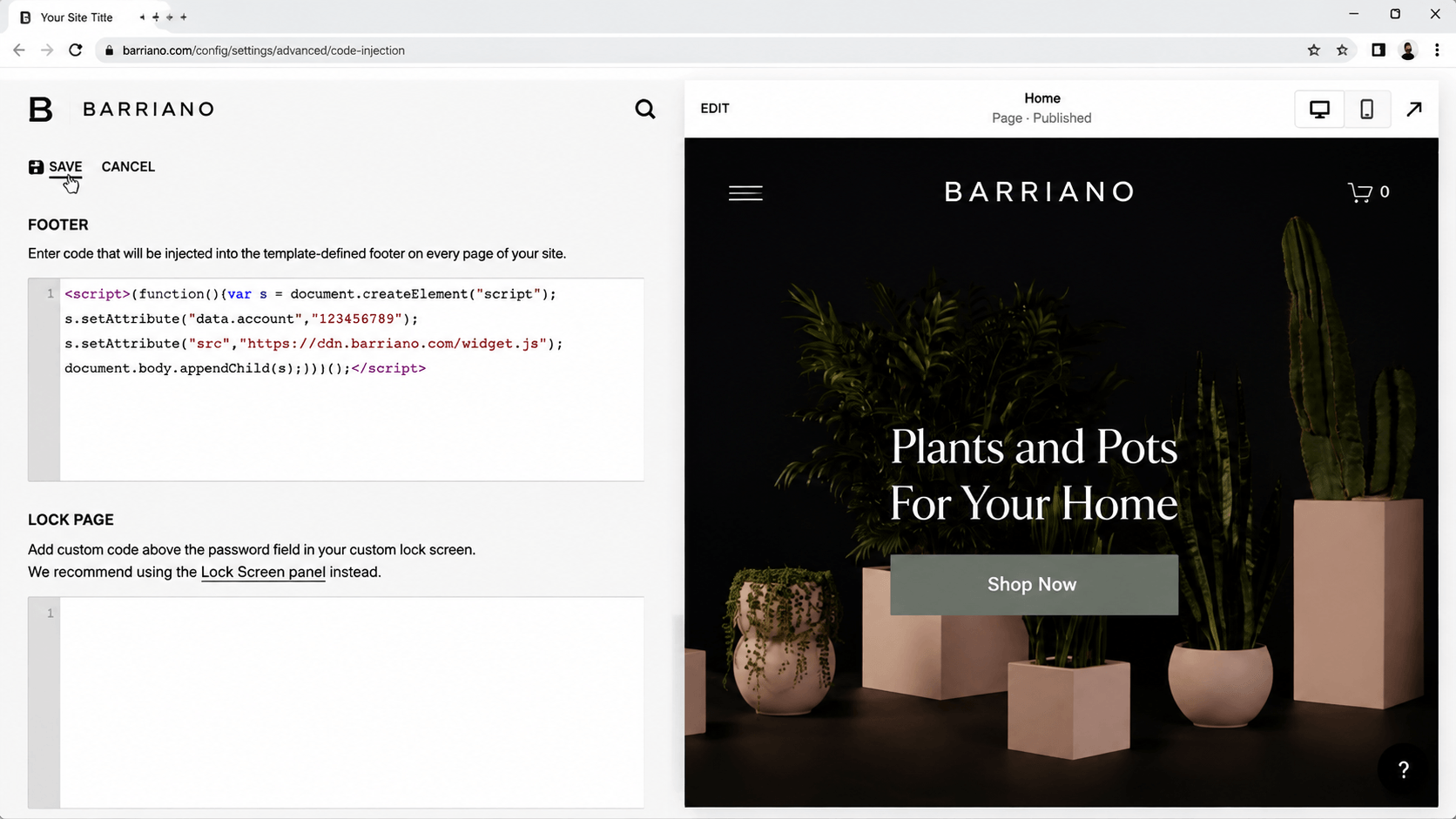
Scroll down to the Footer code field.
Paste your Barriano installation script into the Footer field:
Step 3: Preview, Publish, and Customize Your Squarespace Widget
Preview your Squarespace website and confirm that the Barriano Accessibility Widget has been installed correctly.
Check that:
- The Barriano accessibility icon is visible.
- The widget opens correctly.
- The accessibility options work as expected.
- The widget appears across the required pages.
- The widget works properly on desktop and mobile devices.
Publish your Squarespace website to make the changes available on the live website.
To customize your Squarespace widget, sign in to your Barriano dashboard and select your website.
You can update available widget settings, including:
- Widget icon
- Widget color
- Widget size
- Widget position
- Display preferences
Save your changes before leaving the customization area.
The Barriano Accessibility Widget is now installed on your Squarespace website.