
Increasing digital accessibility of your Dreamweaver website is easy with Barriano. This guide will walk you through installing the Barriano Accessibility Widget and help you begin removing accessibility barriers.
Step 1: Register Your Dreamweaver Website with Barriano
Start by registering your Dreamweaver website with Barriano. Follow the registration steps to receive your unique code snippet. Once you have the code, you can copy it to your clipboard or save it as a text file.
If you’ve already registered a website with Barriano, there’s no need to re-register. You can add the new website to your existing list and use the code provided for that website.
Log in to your Barriano dashboard to find your code. Your unique installation code will be available there, ready to be copied and pasted into your website.
If you have difficulty accessing your Barriano dashboard, use the password recovery option on the Barriano login page.
Step 2: Paste Your Unique Code in the Dreamweaver Website Platform
Before proceeding with the next step, ensure you’re in the “Code” view on your Dreamweaver website. If not, you will notice three tabs at the top of your screen: “Code,” “Split,” and “Live.” Click on the “Code” tab.
Next, open all your Dreamweaver website’s HTML files. If your site is already set up and you have existing pages, your HTML files will be in a list on the right-hand side of the page — this is your “Files” window. You must paste your unique code inside all HTML files in the Files window list. Start by opening one of your HTML files.
Next, go to the first HTML file you have opened and scroll down through the code until you see the body closing tag </body>.
Place your cursor right before the body closing tag </body>, press Enter multiple times to make some space, and paste your Barriano code.
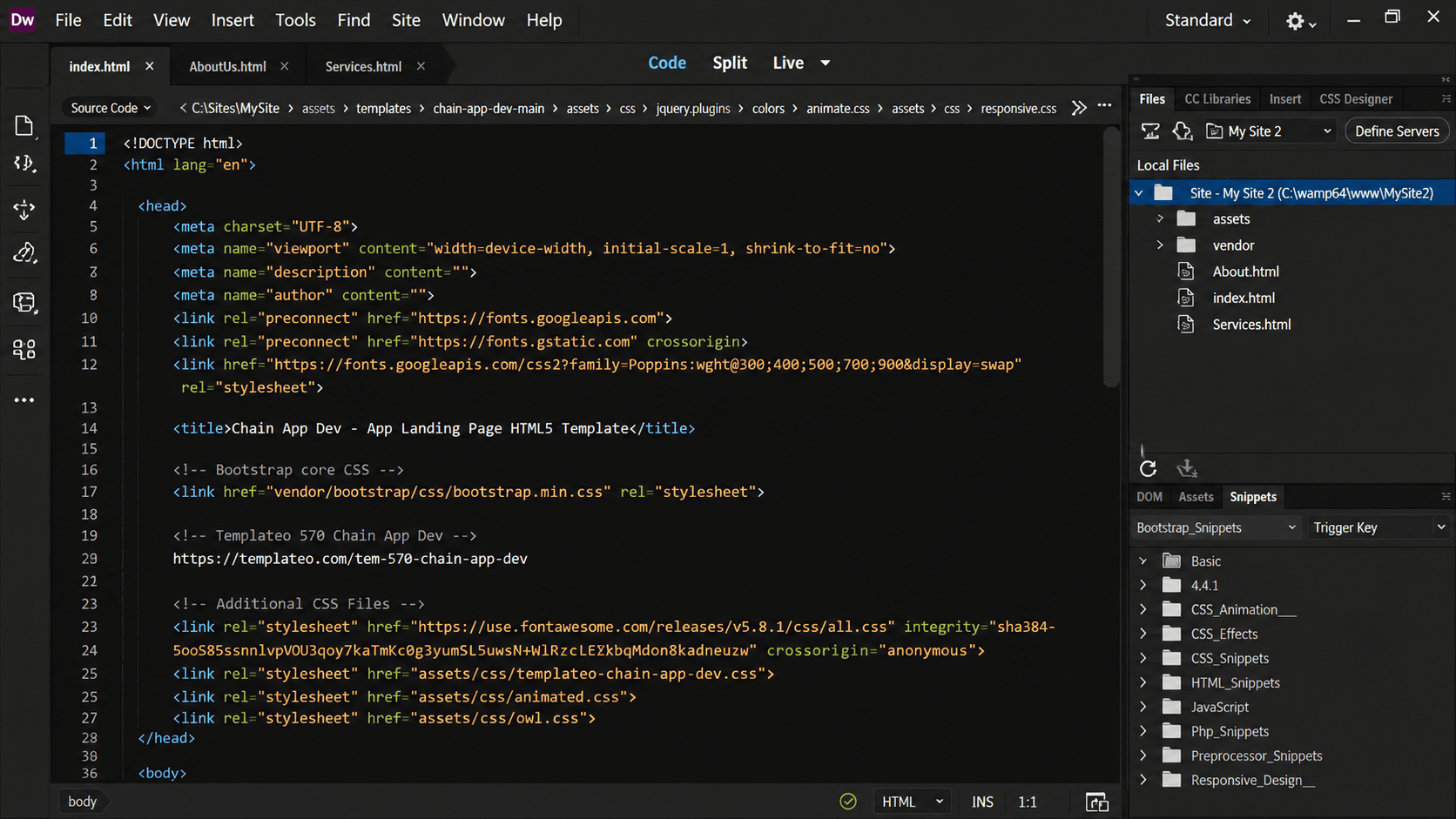
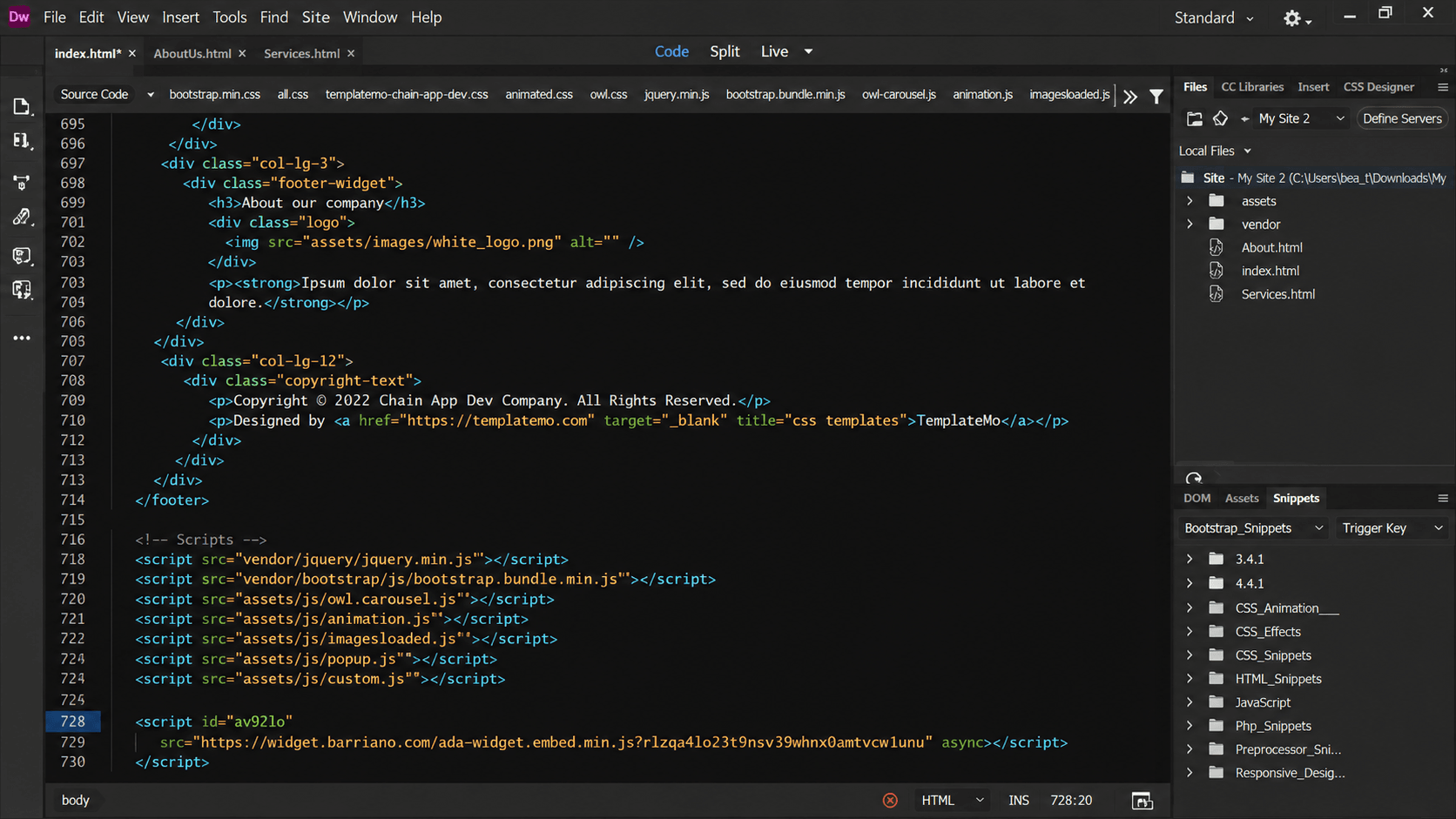
Now, repeat the same steps in all your site’s HTML files. Once you’ve added the code to all the HTML pages in your Files list, go to the top menu, click “File,” and then “Save.”
Step 3: Preview, Publish, and Customize Your Dreamweaver Accessibility Widget
Preview your Dreamweaver website to ensure the Barriano Accessibility Widget is installed and functioning properly. Don’t forget to upload your website to the server.
You can also customize your accessibility widget options through your Barriano dashboard.