
If you want to make your HubSpot website more accessible with the Barriano Accessibility Widget, follow the steps below.
Step 1: Register Your Website with Barriano
First, register your HubSpot website with Barriano and complete the website registration process.
After registration, Barriano will generate a unique installation code for your website. Copy the code to your clipboard or save it as a text file.
You can also find your unique code by signing in to your Barriano dashboard, selecting the relevant website, and opening its embed code or installation code section.
If you misplace your installation code or login information, use the password recovery option on the Barriano login page.
If You Have Already Registered a Website with Barriano
Sign in to your Barriano dashboard, add your new HubSpot website, and copy the installation code provided for that website.
Note: Add a screenshot showing the Barriano dashboard, the unique installation code, and the Copy button.
Step 2: Add the Barriano Code to Your HubSpot Website
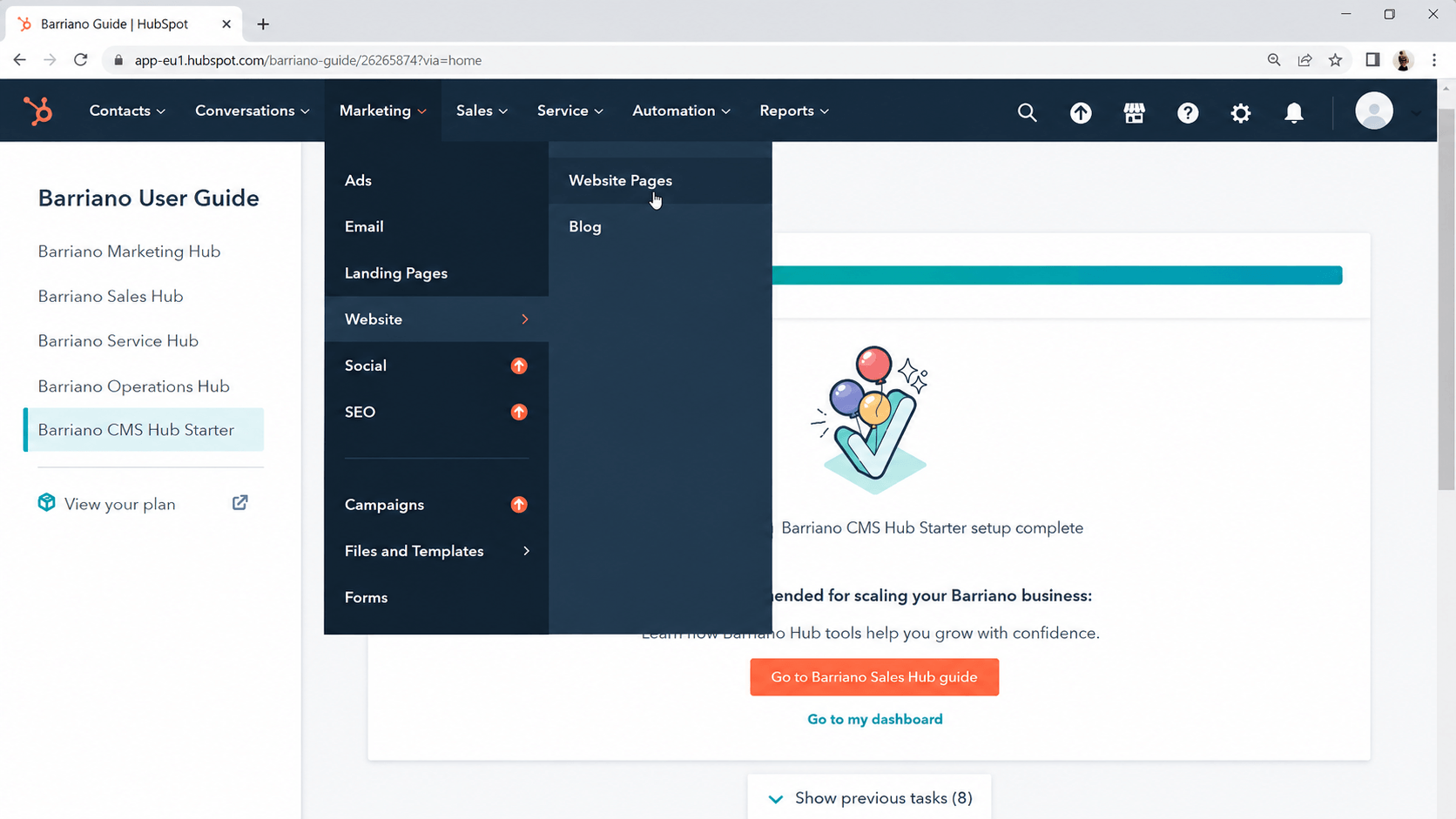
Sign in to your HubSpot dashboard.
From the top navigation menu, select Marketing.
From the available options, select Website, and then select Website Pages from the submenu.
On the Website Pages screen, select the Settings icon near the top-right of the page.
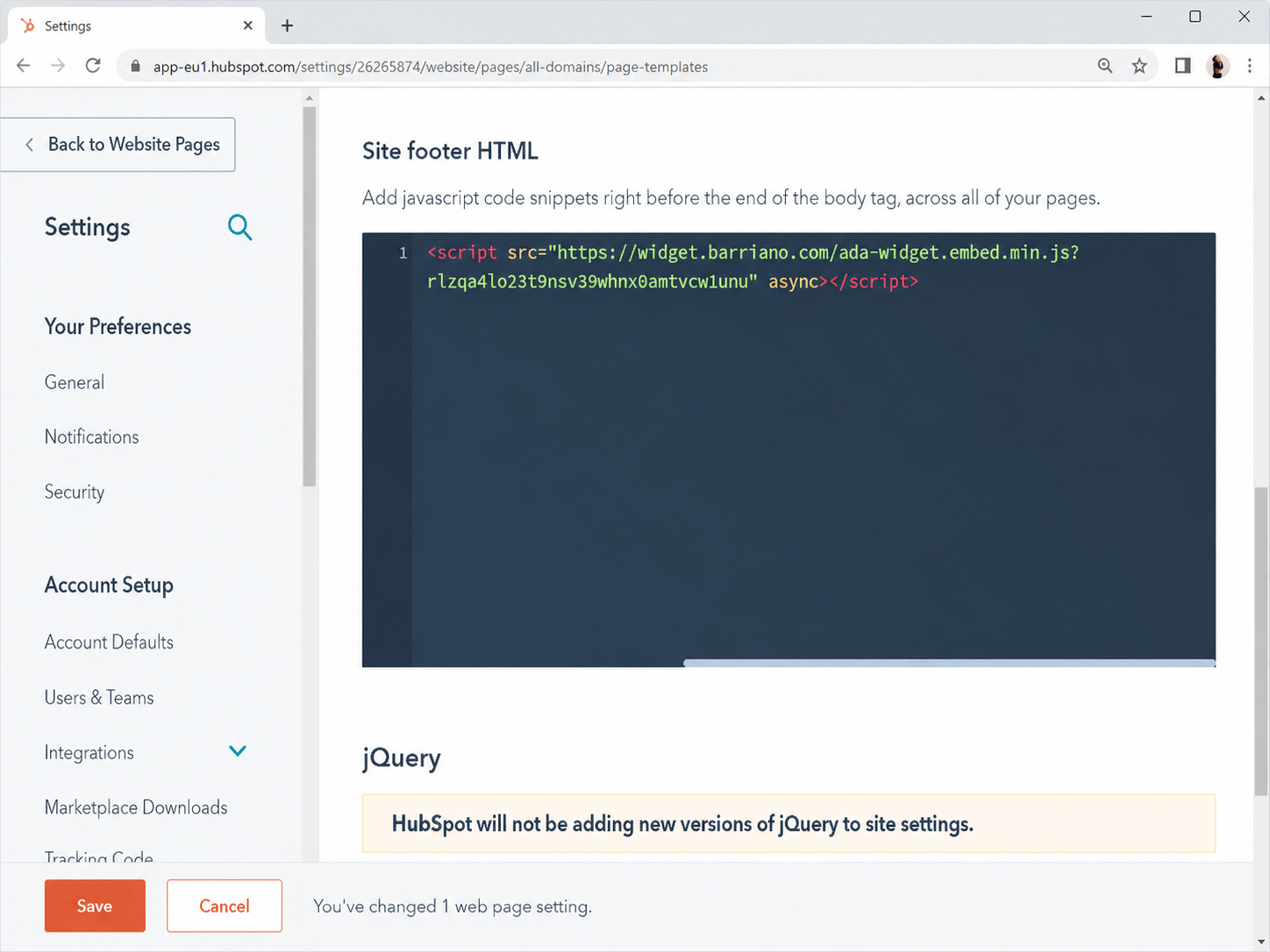
On the settings page, scroll down until you find the Site Footer HTML section.
Paste your unique Barriano installation code into the text box.
Do not modify the script URL or remove the unique website key.
Click the orange Save button at the bottom-left of the page.
You have now installed the Barriano Accessibility Widget on your HubSpot website.
Step 3: Preview Your HubSpot Website
Preview your website and confirm that the Barriano Accessibility Widget has been installed correctly.
Check that:
- The Barriano accessibility icon is visible.
- The widget opens properly.
- The accessibility options work correctly.
- The widget appears on all required website pages.
- The widget works correctly on desktop and mobile devices.
Step 4: Customize Your Barriano Widget
Sign in to your Barriano dashboard and select your HubSpot website.
Open the widget settings and update the available customization options according to your website requirements.
Depending on the options available, you may be able to customize the widget’s:
- Button color
- Icon type
- Position
- Size
- Display preferences
Save your changes and preview the website again to confirm that the updated widget settings appear correctly.