
Webflow allows website builders to easily create websites that showcase their products or services. Now, making sure that your visually appealing website is also accessible is easier than ever. Barriano makes Webflow accessibility possible. Here’s how you can install Barriano’s accessibility widget on your Webflow website.
Step 1: Register Your Website with Barriano
You will first need to register your website with Barriano and complete the registration process.
Once you reach the page with your unique code snippet, copy and save the code for use during installation. If you forget to copy your unique code, you can log in to your Barriano dashboard and access it from there. The embed script is your unique installation code, which you can copy.
Note: Add a screenshot showing the Barriano dashboard and the unique embed script.
If You Forget Your Login Information
Use the password recovery option on the Barriano login page to regain access to your account.
If You Have Already Registered a Website with Barriano
Add your new website to your account and use the unique installation code provided for that website.
Step 2: Install the Barriano Widget on Your Webflow Website
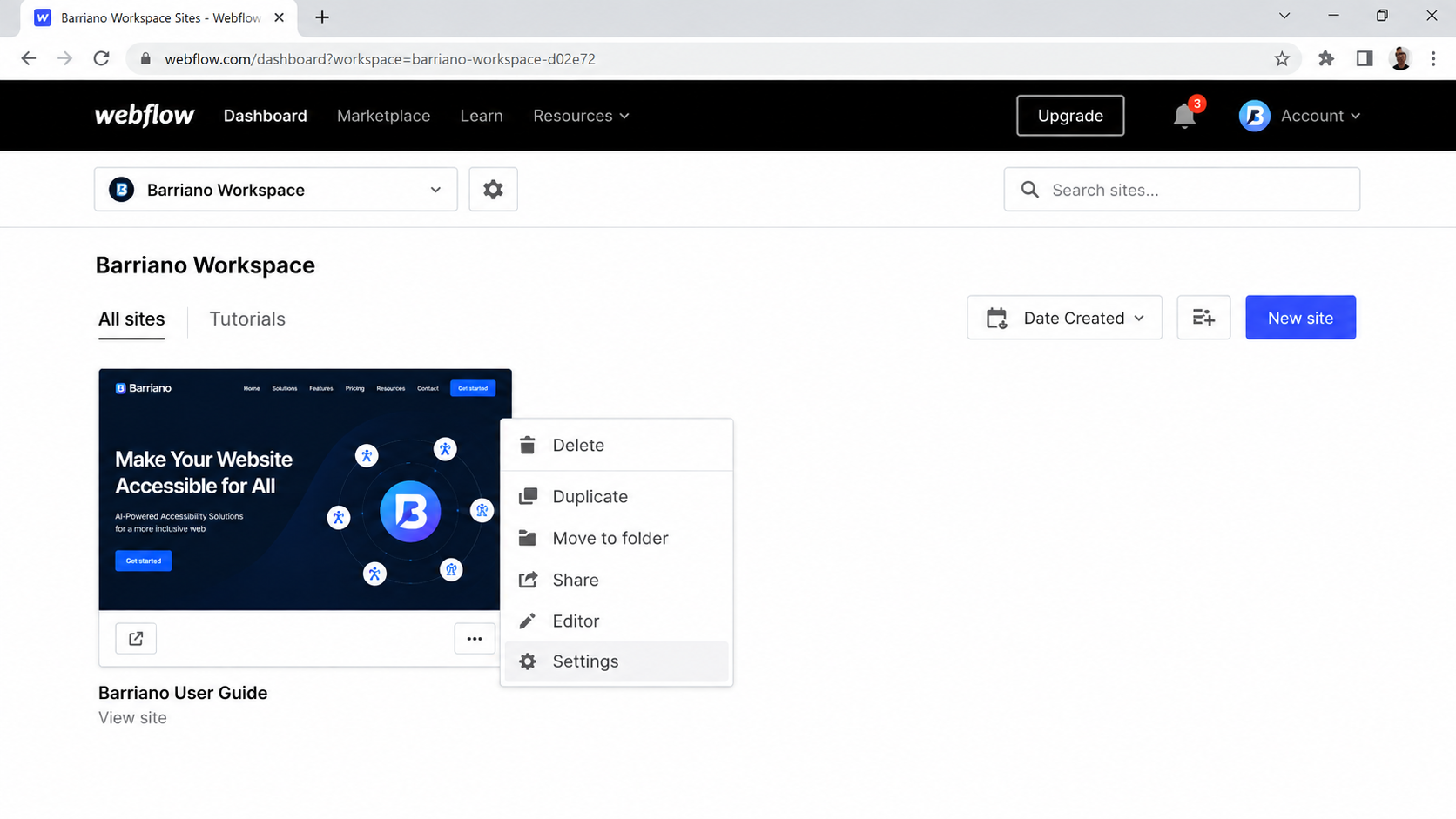
In your Webflow dashboard, go to the list of your websites and find the website where you would like to install the Barriano widget. Select the icon with three dots at the bottom-right of the website thumbnail, then click Settings.
The Settings page will open with navigation tabs across the top. Select the “Custom Code” tab at the end of the list, and scroll to the bottom of the page.
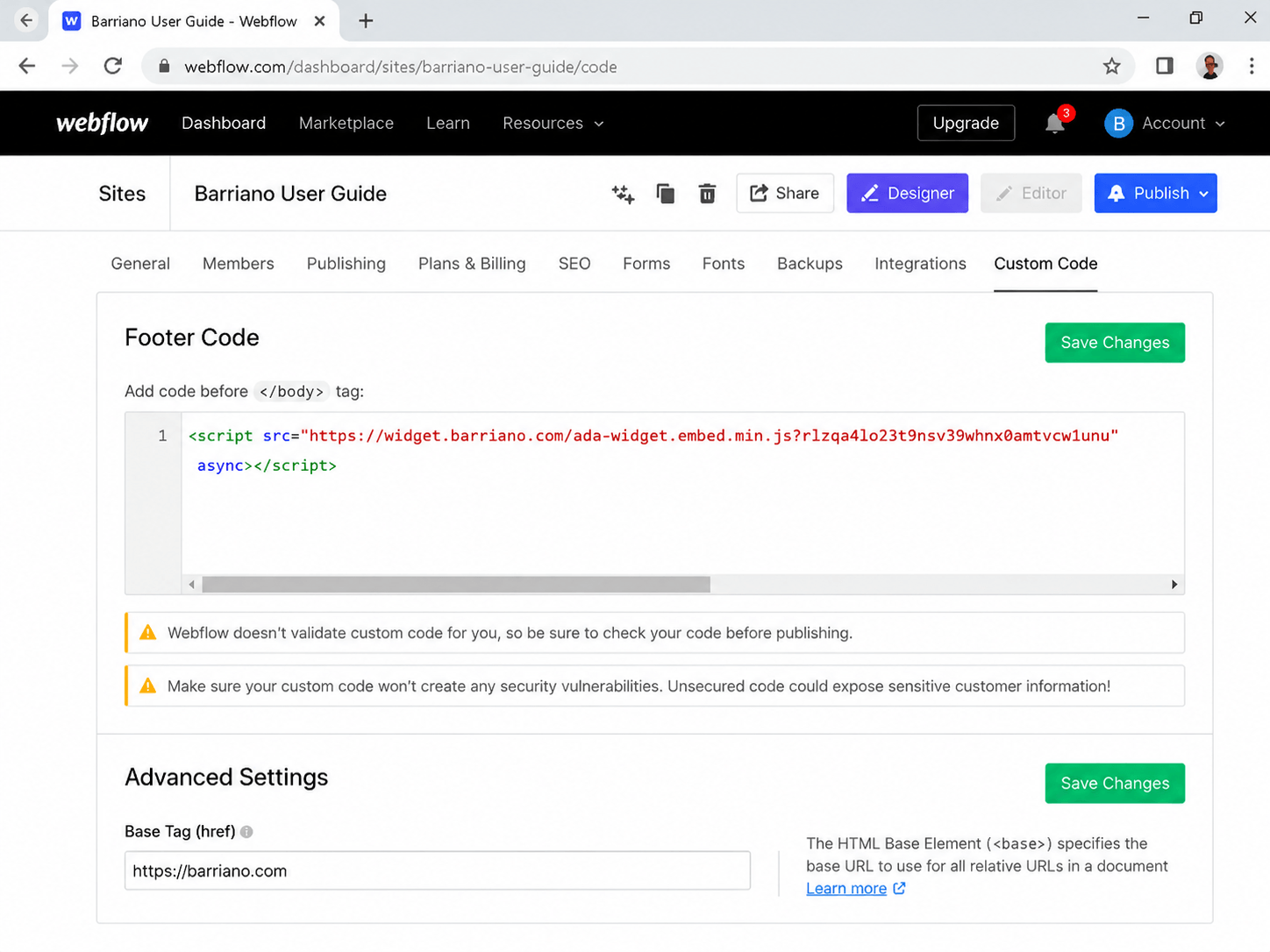
In the “Footer Code” section at the bottom of the page, paste your unique Barriano code snippet. Then click the green “Save Changes” button at the top right.
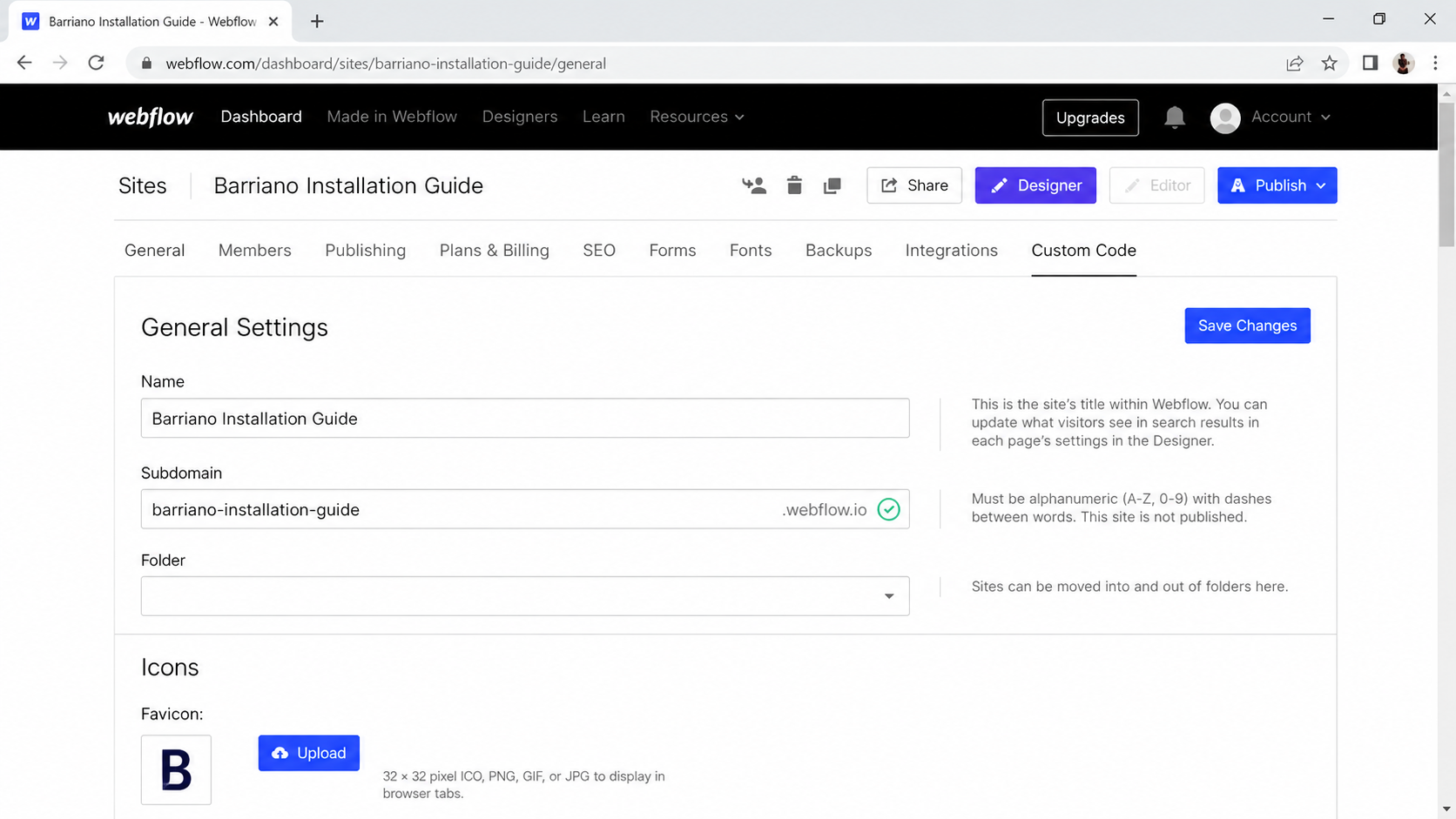
Once you have saved your changes, click the blue “Publish” button at the top right of the page to publish the changes to your Webflow website.
You have now installed the Barriano Accessibility Widget on your Webflow website. Ensure that the widget is working properly on each page of your website.
Step 3: Customize Your Barriano Widget
To customize the widget options for your Webflow website, sign in to your Barriano dashboard. Select your website and open the widget settings to update the available customization options.
Step 4: Review Your Accessibility Needs
Review your website and confirm that the Barriano Accessibility Widget meets your accessibility requirements and works correctly across desktop, tablet, and mobile devices.