
Making your Wix website accessible is an ongoing process. The Barriano Accessibility Widget provides accessibility tools that can help more visitors access and interact with your website’s content.
Follow the manual installation steps below to add the Barriano Accessibility Widget to your Wix website.
Wix Manual Installation Guide
Step 1: Register Your Wix Website with Barriano
Register your Wix website with Barriano and complete the website setup process.
After registration, Barriano will provide an installation script for your website. Copy the script to your clipboard or save it in a text file.
Use the following Barriano installation script:
Do not modify the script URL or remove the unique website key.
If your Wix website is already registered, sign in to your Barriano dashboard, select the relevant website, and copy its existing installation script.
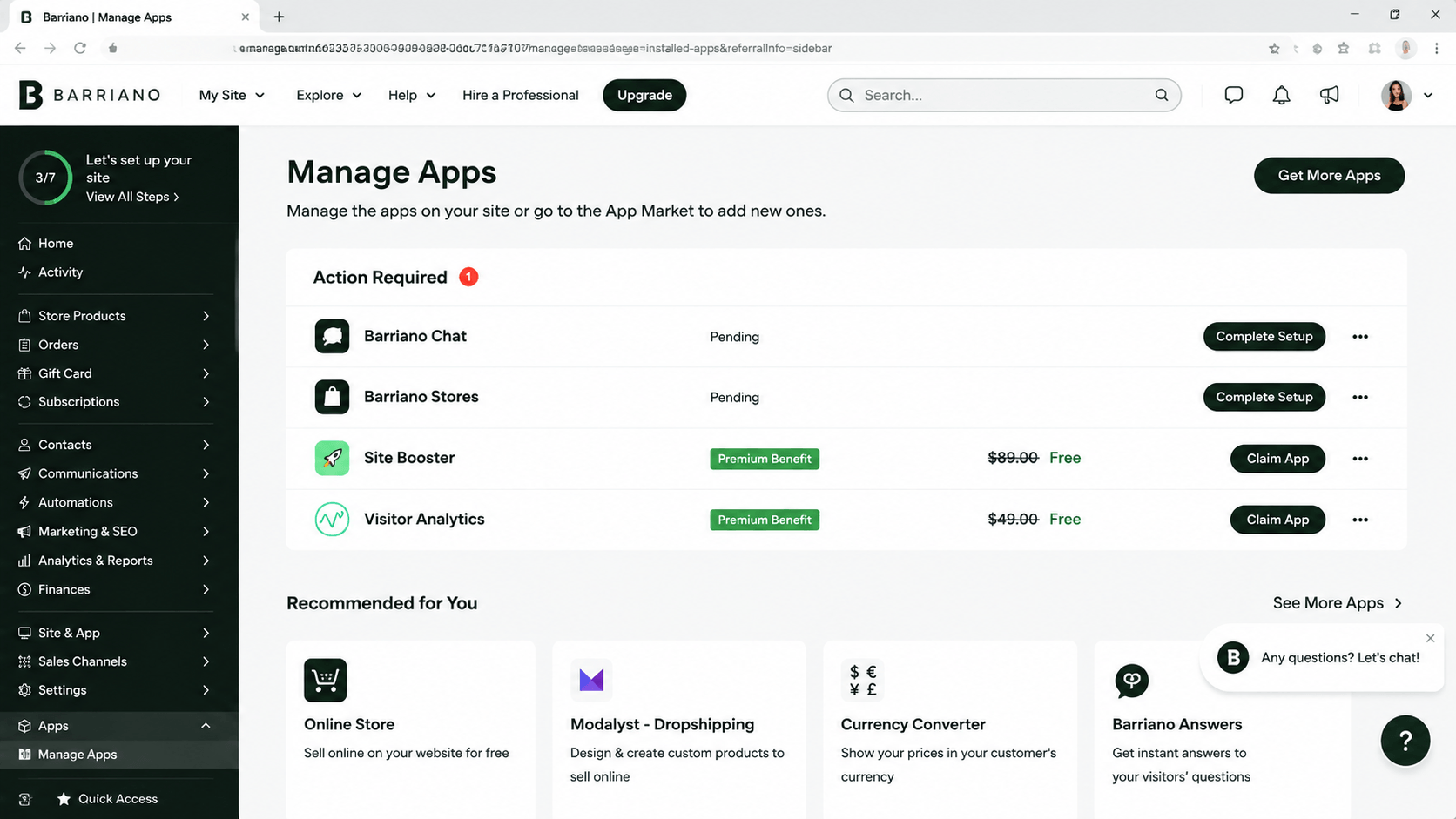
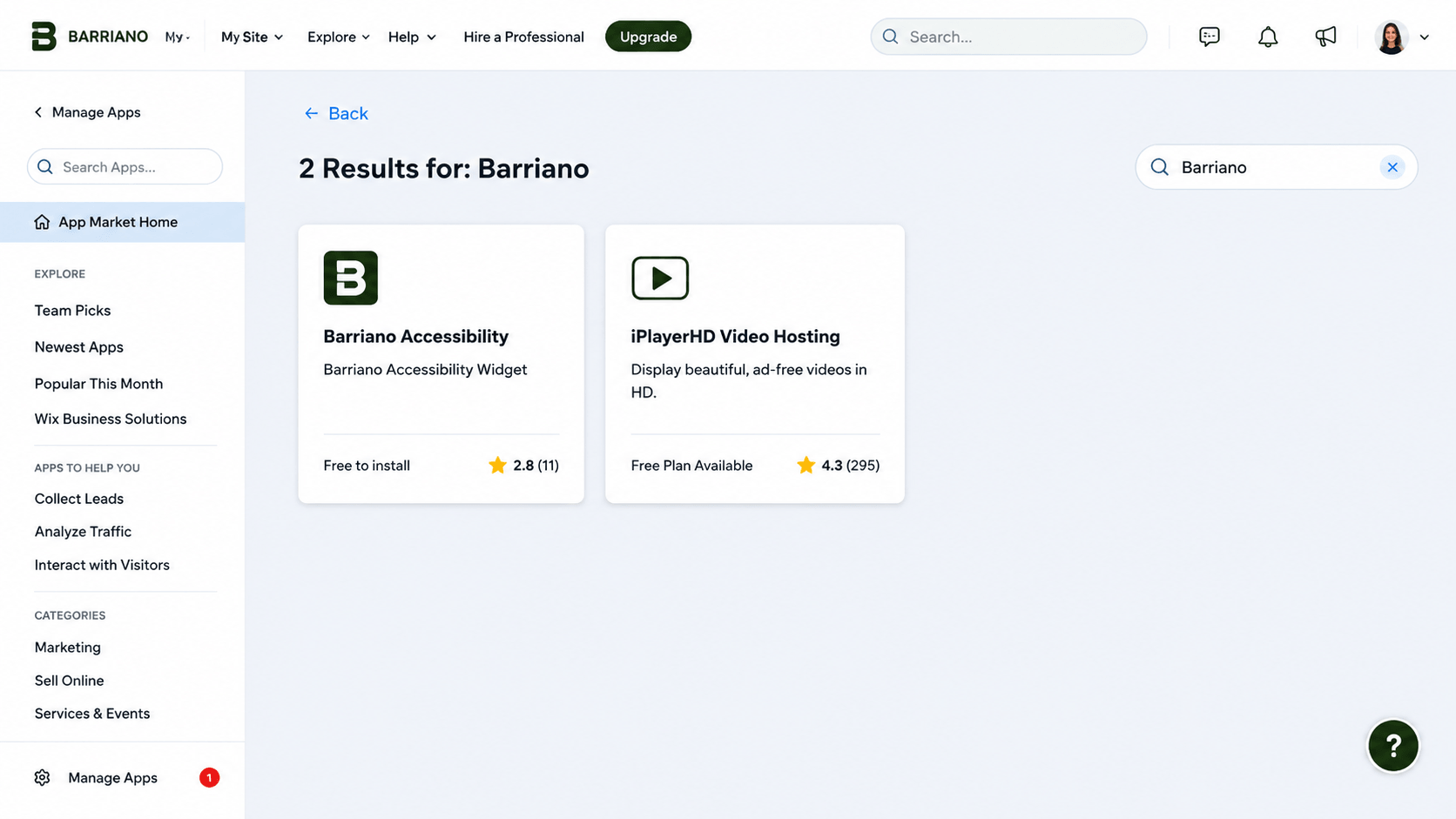
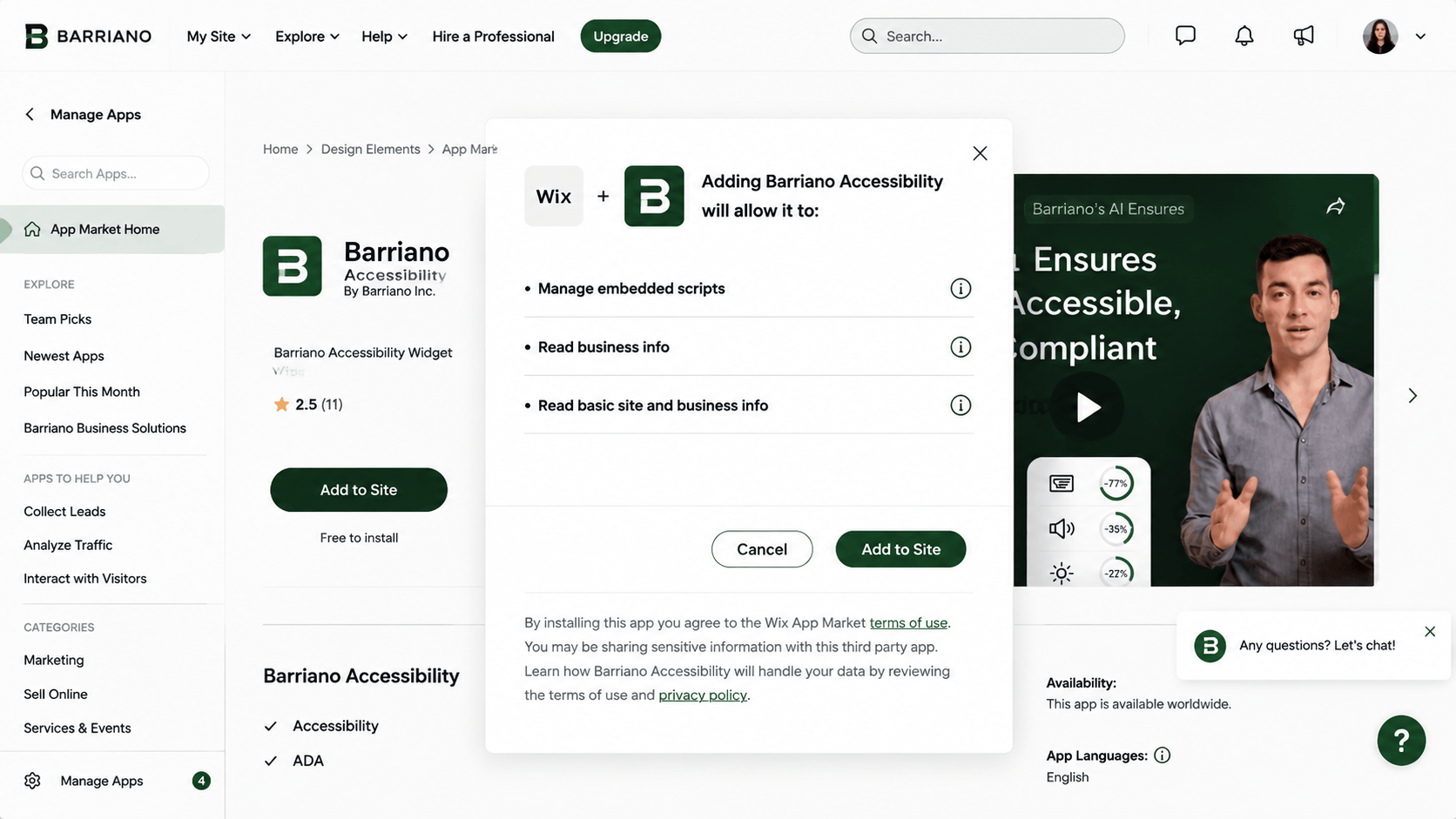
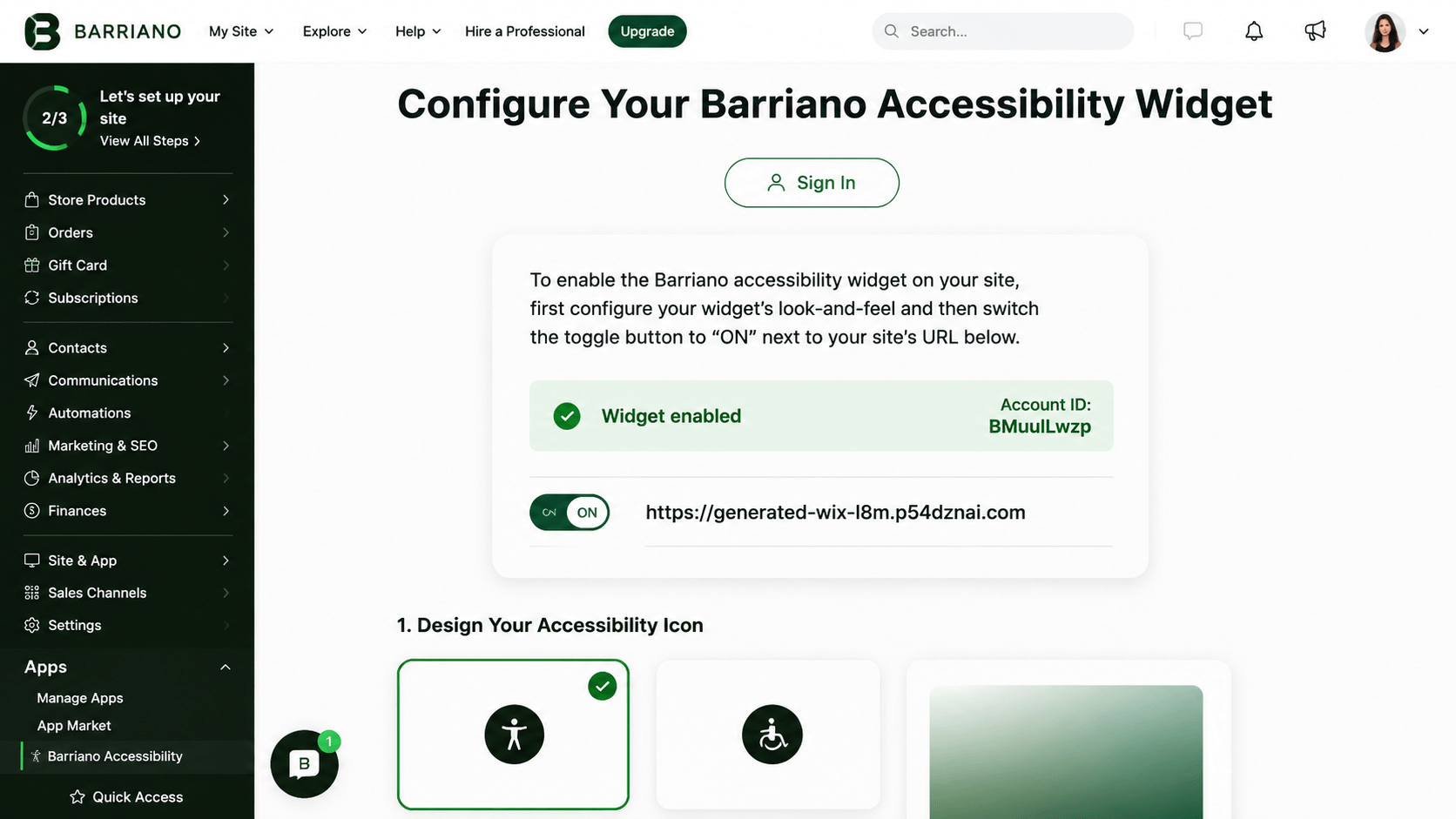
Step 2: Open the Wix Custom Code Settings
Sign in to your Wix administration dashboard.
From the left navigation menu, scroll down and select Settings.
On the Settings page, scroll to the Advanced section and select Custom Code or Add Custom Code.
Step 3: Add the Barriano Installation Script
A configuration window will open.
Paste the following Barriano installation script into the code field:
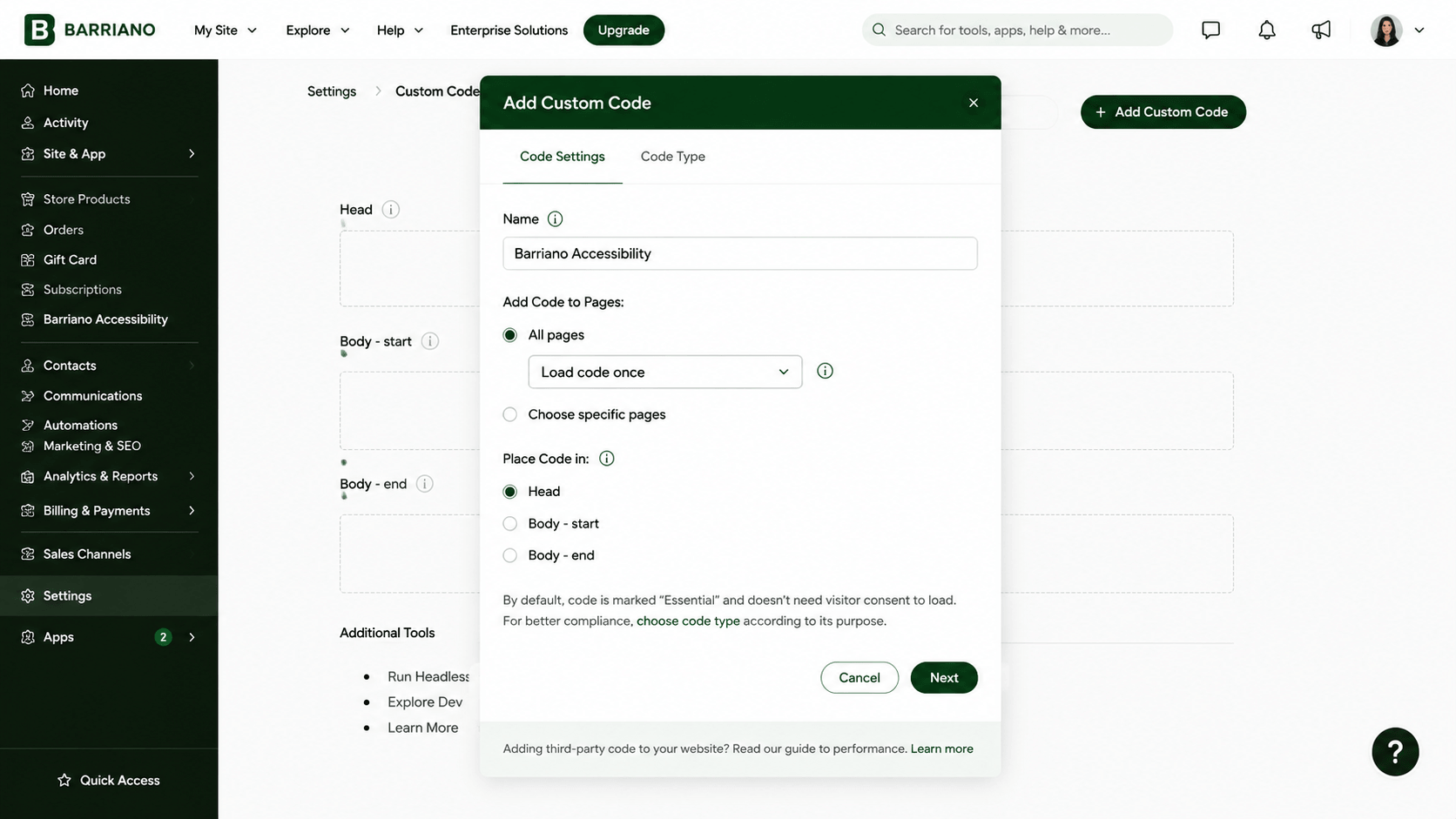
In the Name field, enter:
Barriano Accessibility Widget
Configure the code settings as follows:
- Select Add Code to All Pages.
- Select the option to load the code on each page.
- Under Place Code In, select Head.
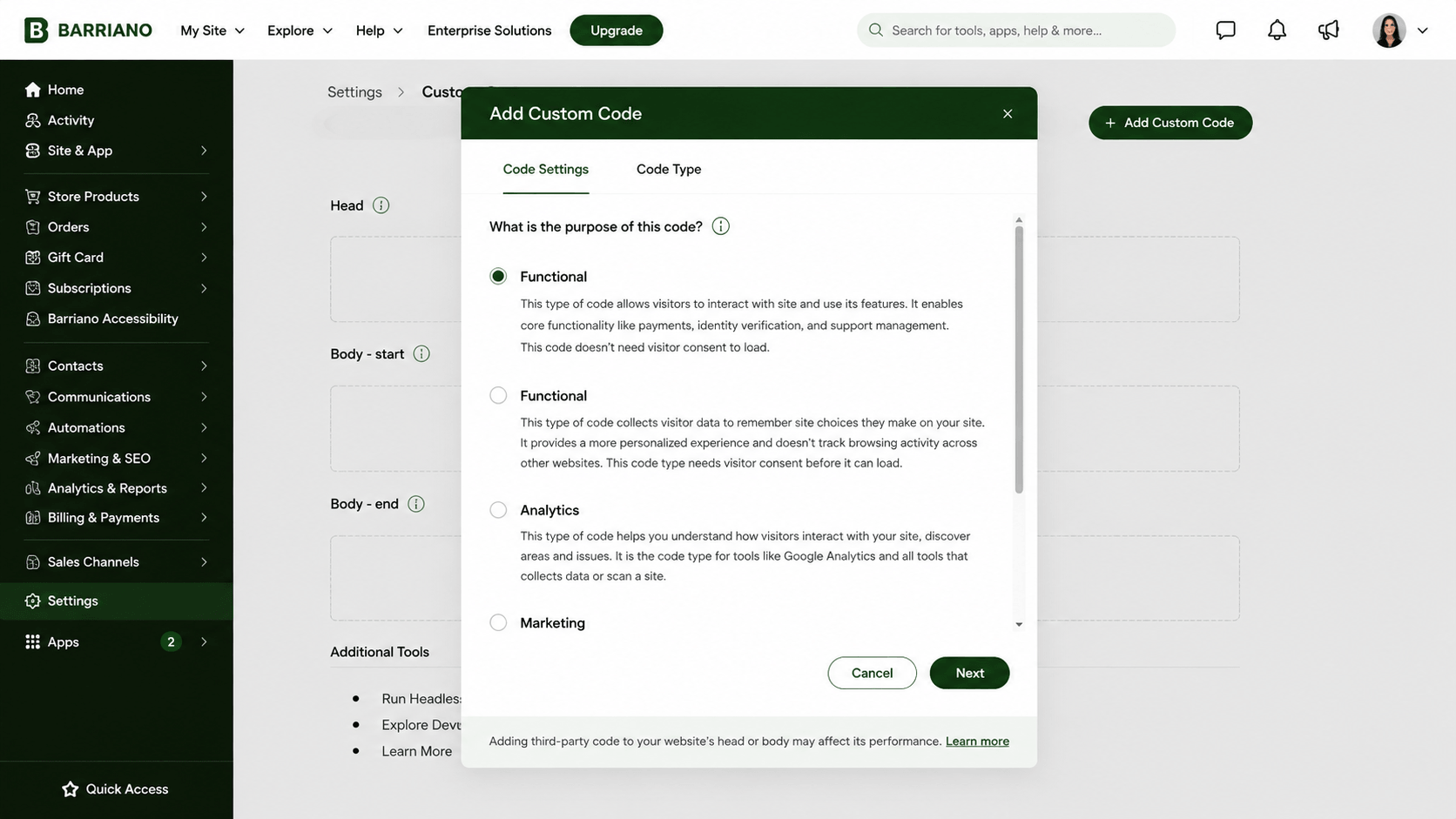
- Under Code Type, select Essential.
Click Apply to save the custom code.
Step 4: Preview and Publish Your Wix Website
Preview your Wix website and confirm that the Barriano Accessibility Widget has been installed correctly.
Check that:
- The Barriano accessibility icon is visible.
- The widget opens when selected.
- The accessibility options work correctly.
- The widget appears on all required pages.
- The widget does not cover important website content.
- The widget works correctly on desktop and mobile devices.
After confirming that the widget works correctly, publish your Wix website to make the changes available on the live site.
Step 5: Customize Your Barriano Widget
Sign in to your Barriano dashboard and select your Wix website.
Open the widget settings and configure the available display options according to your website requirements.
Available customization options may include:
- Widget icon
- Widget color
- Widget size
- Widget position
- Display preferences
Save your changes after completing the customization.
Wix Manual Installation Guide
Step 1: Register Your Wix Website with Barriano
Register your Wix website with Barriano and complete the website setup process.
After registration, Barriano will generate a unique installation script for your website. Copy the script to your clipboard or save it in a document for later use.
Use the following Barriano installation script:
Step 1: Register Your Wix Website with Barriano
Register your Wix website with Barriano and complete the website setup process.
After registration, Barriano will generate a unique installation script for your website. Copy the script to your clipboard or save it in a document for later use.
Use the following Barriano installation script:
Do not modify the script URL or remove the unique website key.
If your Wix website is already registered, sign in to your Barriano dashboard, select the relevant website, and copy its existing installation script.
Step 2: Paste Your Unique Code into the Wix Dashboard
Sign in to your Wix dashboard.
From the navigation menu on the left, scroll down and select Settings.
On the Settings page, scroll to the Advanced section and select Custom Code or Add Custom Code.
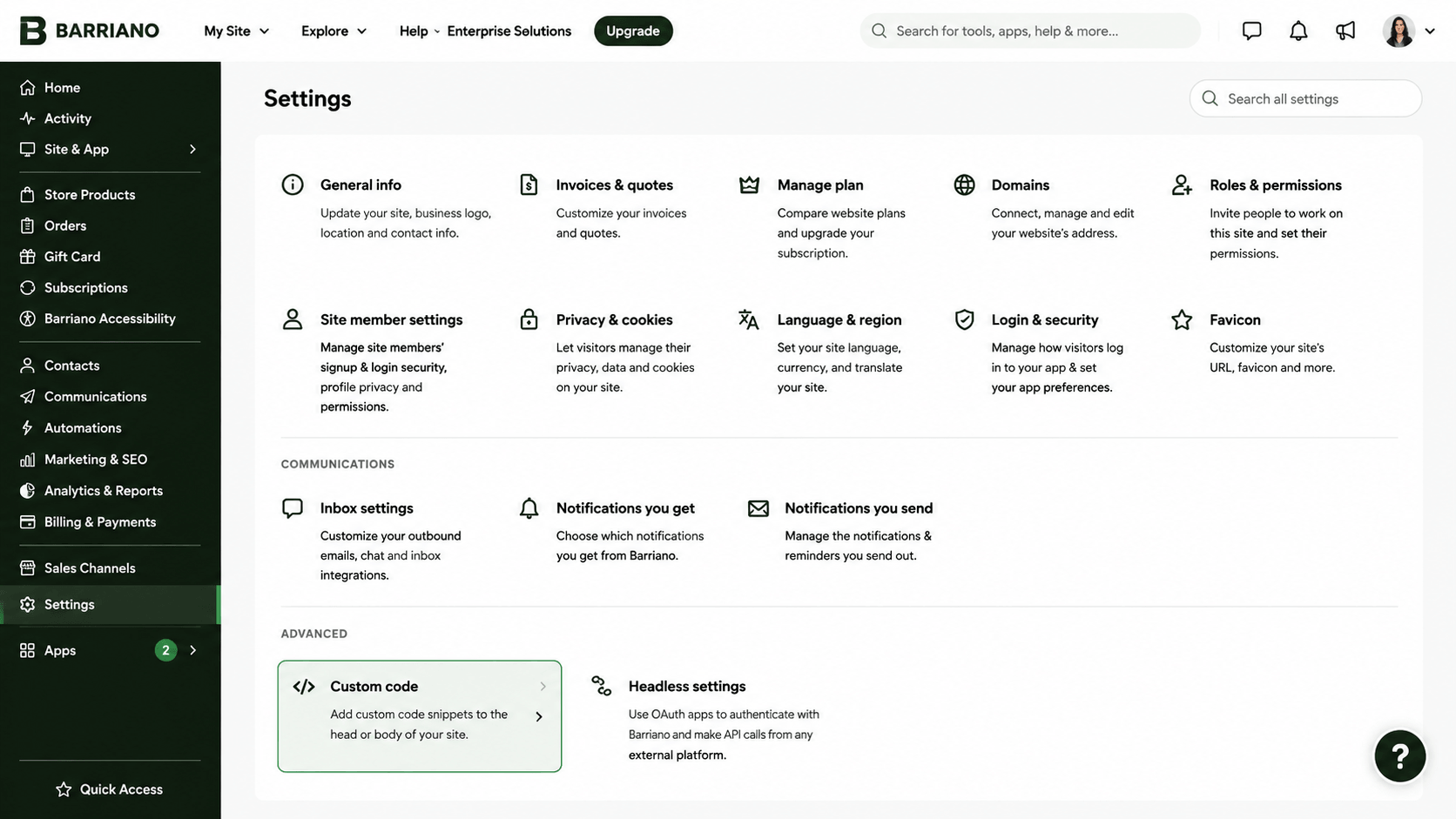
A new page will open. Click Add Custom Code near the top-right of the page.
Step 3: Check the Installation, Publish the Website, and Customize the Widget
Preview your Wix website and confirm that the Barriano Accessibility Widget has been installed correctly.
Check that:
- The Barriano accessibility icon is visible.
- The widget opens when selected.
- The accessibility options work correctly.
- The widget appears on all required pages.
- The widget works correctly on desktop and mobile devices.
After confirming that the widget works correctly, publish your Wix website to make the changes available on the live site.
To customize the widget, sign in to your Barriano dashboard and select your Wix website.
Open the widget settings and configure the available options, such as the widget icon, color, size, position, and display preferences.
Save your changes before leaving the widget settings.
Add an Accessibility Statement to Your Website
After preparing your accessibility statement, publish it on a page of your Wix website and copy the page URL.
Sign in to your Barriano dashboard and select your Wix website.
Open the website or widget settings and locate the accessibility statement settings.
Paste the accessibility statement page URL into the available field.
Enable the option to display the accessibility statement, and save your changes.