
Your BigCommerce website should be accessible to all customers who want to browse and purchase from your online store. This installation guide explains how to add the Barriano Accessibility Widget to your BigCommerce website.
Step 1: Register Your BigCommerce Website with Barriano
Register your BigCommerce website with Barriano and complete the website setup process.
After registration, Barriano will generate a unique installation script for your website. Copy the script to your clipboard or save it as a text file.
Use the following Barriano installation script:
Do not modify the script URL or remove the unique website key.
If your website is already registered with Barriano, sign in to your Barriano dashboard, select your BigCommerce website, and copy the existing installation script.
If you have difficulty accessing your account, use the password recovery option to regain access.
Step 2: Add the Barriano Script to Your BigCommerce Website
Sign in to your BigCommerce dashboard.
From the left navigation menu, select Storefront.
Scroll down and select Script Manager.
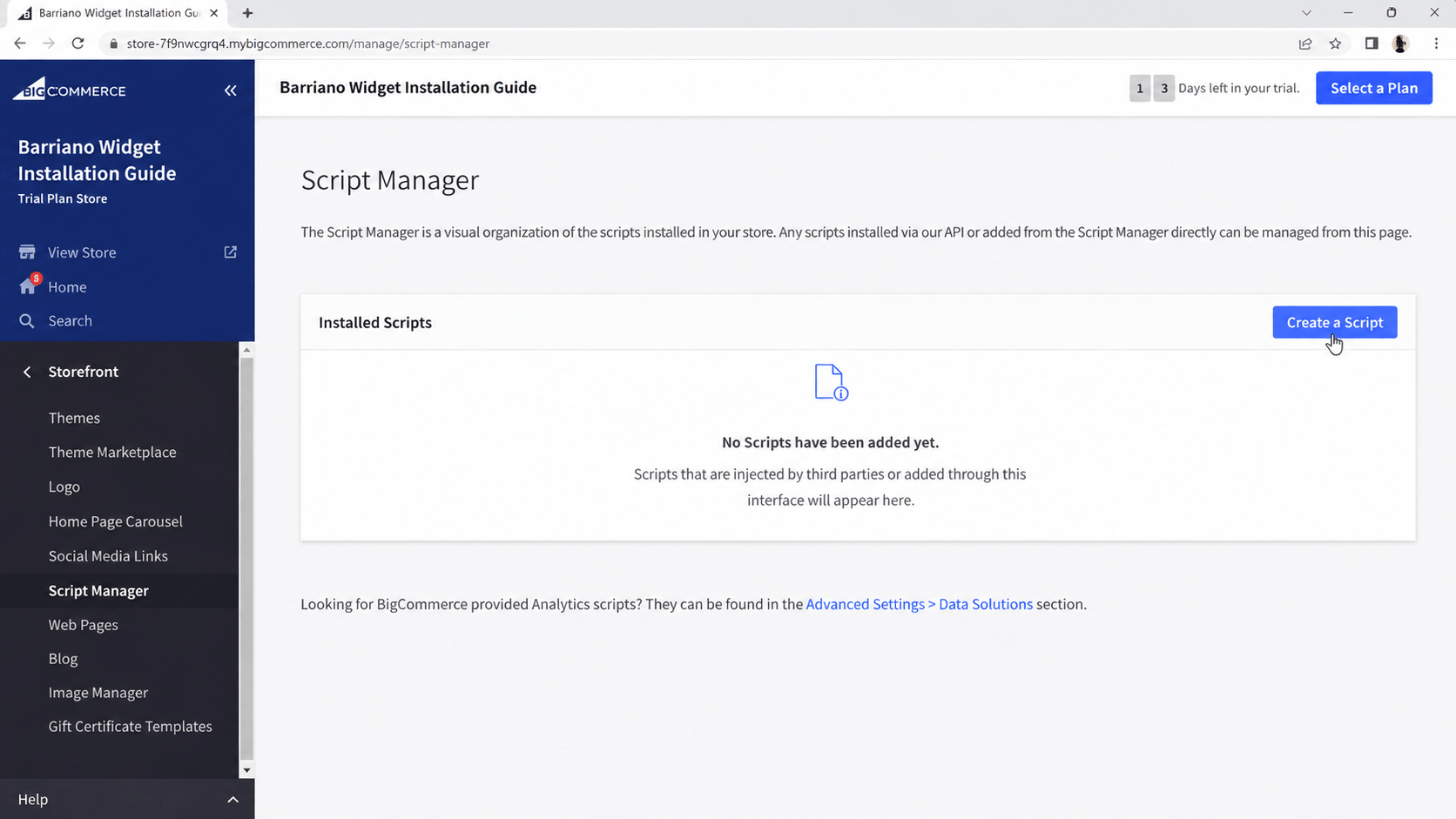
On the Script Manager page, click the Create a Script button.
Configure the script settings as follows:
Script Name
Enter: Barriano Accessibility Widget
Location on Page
Select: Footer
Select Pages Where Script Will Be Added
Select: All Pages
Script Category
Select: Essential
Script Type
Select: Script
In the script field, paste your Barriano installation code:
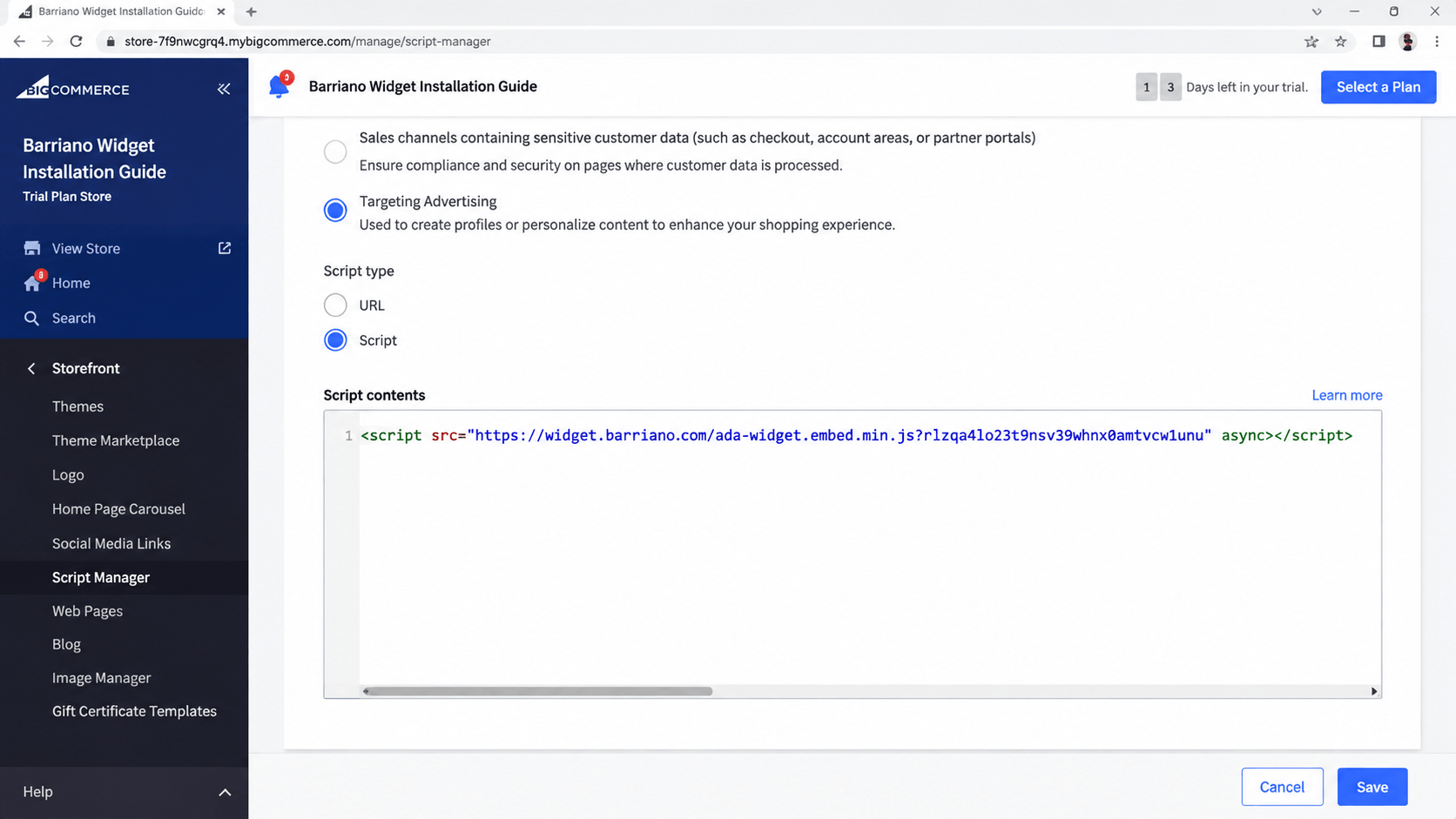
Save the script.
After saving, publish your BigCommerce website and verify that the Barriano Accessibility Widget appears correctly.
Step 3: Customize Your BigCommerce Accessibility Widget
Sign in to your Barriano dashboard and select your BigCommerce website.
Open the widget settings to customize available options, such as:
- Widget icon
- Widget color
- Widget size
- Widget position
- Display preferences
Save your changes after completing the customization.
Step 4: Review Your BigCommerce Accessibility Setup
Open your BigCommerce store and confirm that the Barriano Accessibility Widget is working correctly.
Check that:
- The widget icon is visible.
- The widget opens correctly.
- Accessibility options work as expected.
- The widget appears across required pages.
- The widget works properly on desktop, tablet, and mobile devices.
The Barriano Accessibility Widget is now installed on your BigCommerce website.