
In this installation guide, we will help you manually install Barriano’s Accessibility Widget on your Strikingly website and improve the accessibility of your website.
Step 1: Register Your Website with Barriano
First, register your Strikingly website with Barriano.
Follow the registration steps until you receive your unique installation code. You can copy this code to your clipboard or save it as a text file.
You can also access your installation code by signing in to your Barriano dashboard and selecting the relevant website.
You don’t need to re-register if you have already registered your website with Barriano. Simply sign in to your dashboard and use the installation code provided for that website.
Step 2: Paste Your Unique Code into Your Strikingly Website
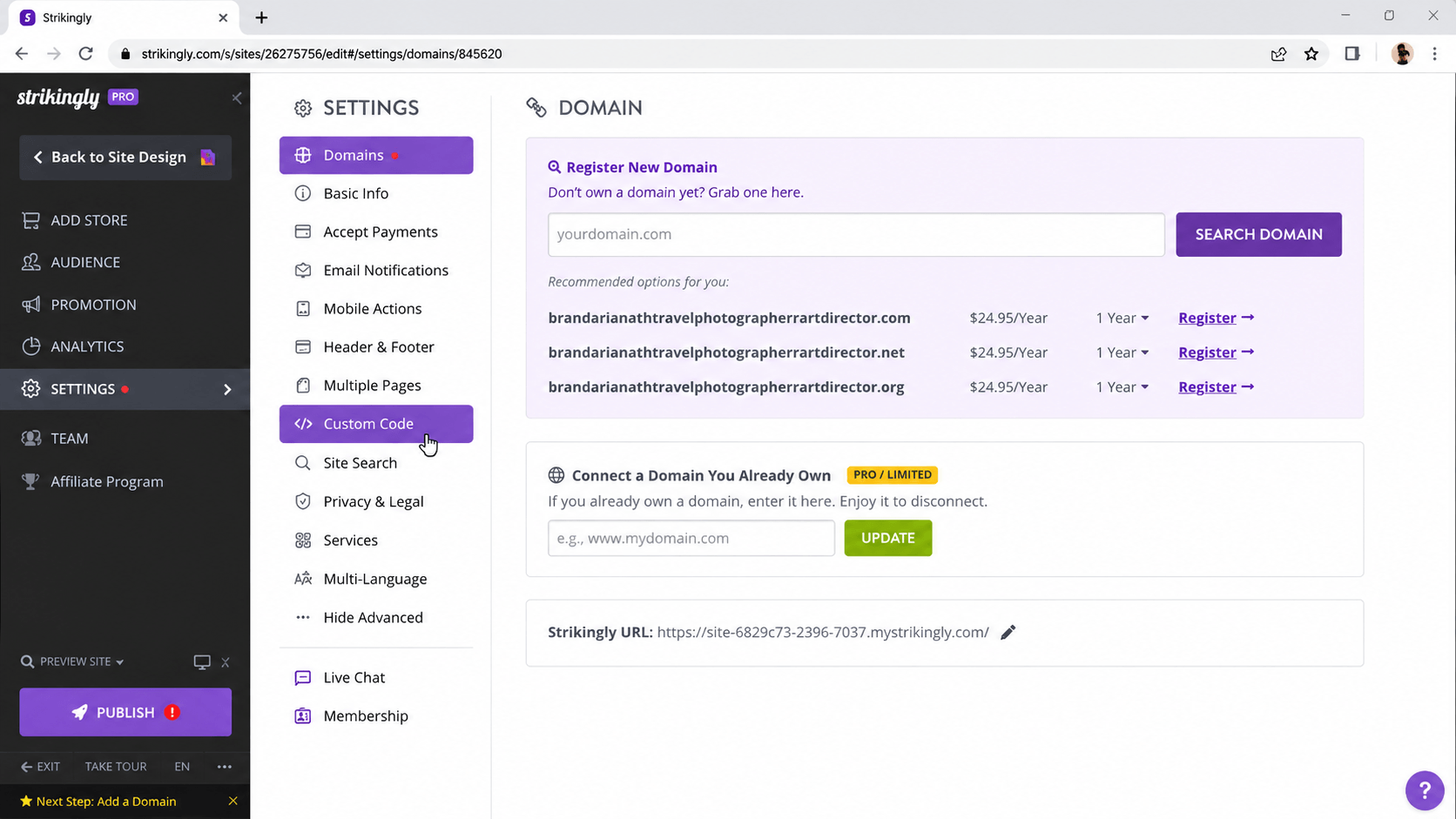
In the Strikingly Site Designer, click on the “Settings” button in the menu at the top left of the page.
On the settings page, click “Custom Code” from the left-side menu.
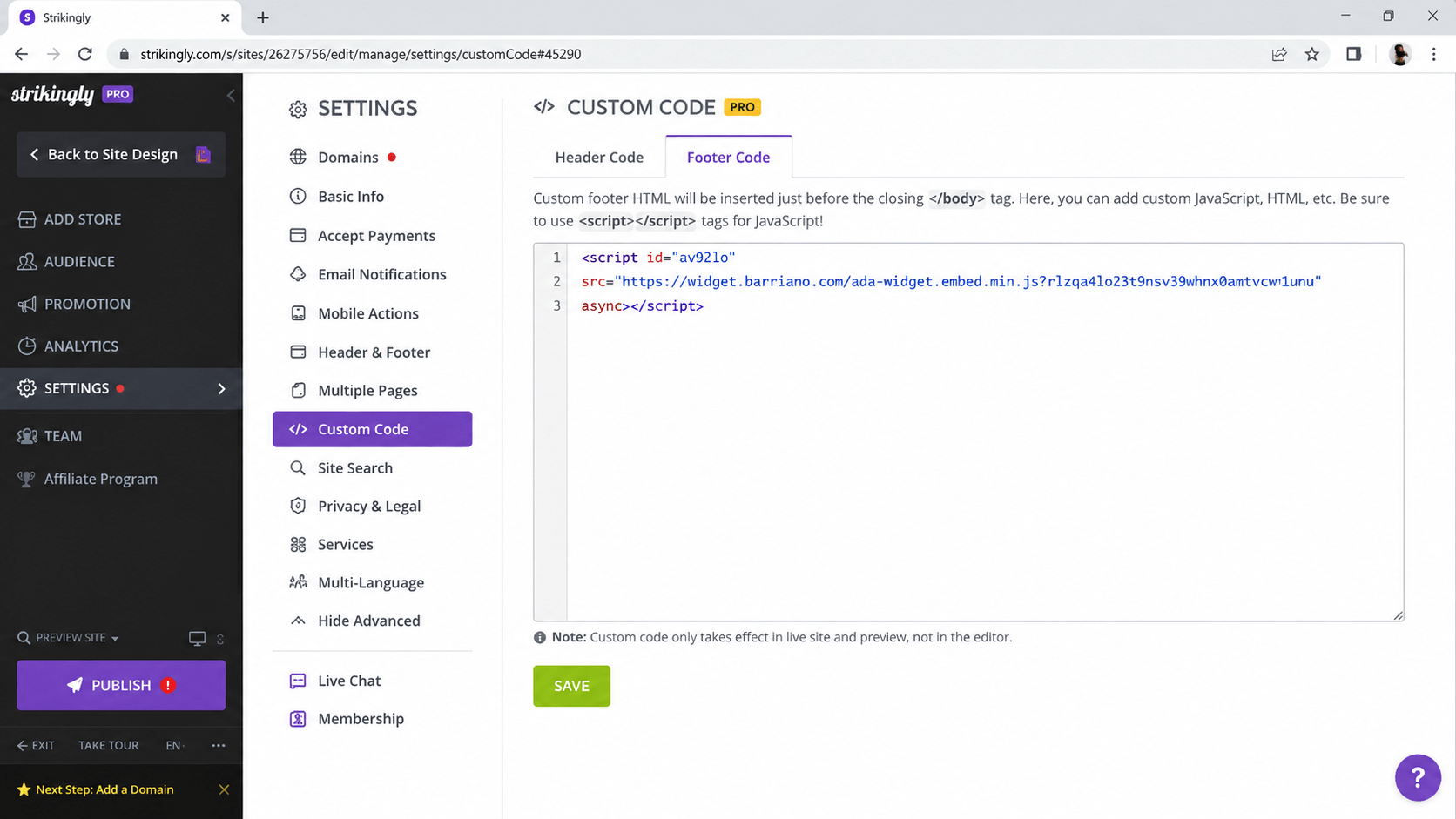
When the Custom Code page opens, select the “Footer Code” tab.
Paste your unique Barriano installation code into the text field.
Click the green “Save” button.
Step 3: Preview Your Website
In the left menu of the Strikingly Site Designer, click “Preview Site” above the “Publish” button.
Preview your website to ensure that the Barriano Accessibility Widget has been installed correctly.
If the widget is visible and working properly, the installation is complete.
Step 4: Customize Your Accessibility Widget
To access the customization options for your Barriano Accessibility Widget, sign in to your Barriano dashboard and select your website.
Use the available widget settings to customize the widget according to your website requirements.